User guide
How to use Zova
From installation to your first saved class.
New · Android
Zova for Android is in internal testing.
Join with the invited Google account, tap Join the test, then install Zova from Google Play.
Join the Android test →Learn with Zova
Live translation in 78 world languages.
Zova detects the lesson language automatically, then helps you follow the class with live transcription, translation, optional translated audio and study notes.
No charge for Zova's own extension featuresStart with Google AI Studio
Before your first live session, create your own Gemini API key in Google AI Studio. It is stored locally in Zova.
Open Google AI Studio →Zova does not currently charge for its own extension features. External Google services may have their own limits, eligibility requirements or terms.
From class to saved study notes
Use this visual path to understand how Zova detects, translates and saves your lesson.
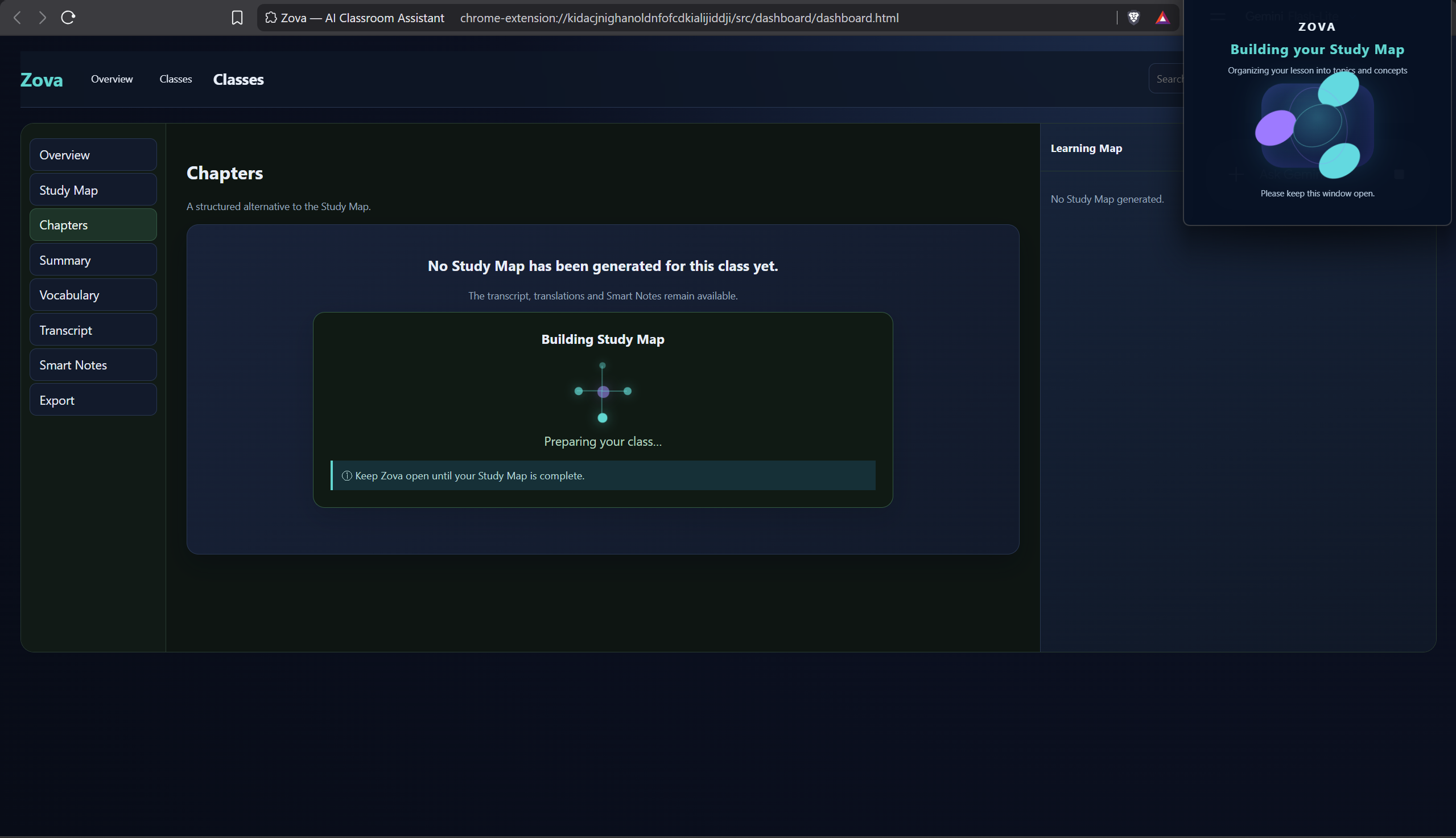
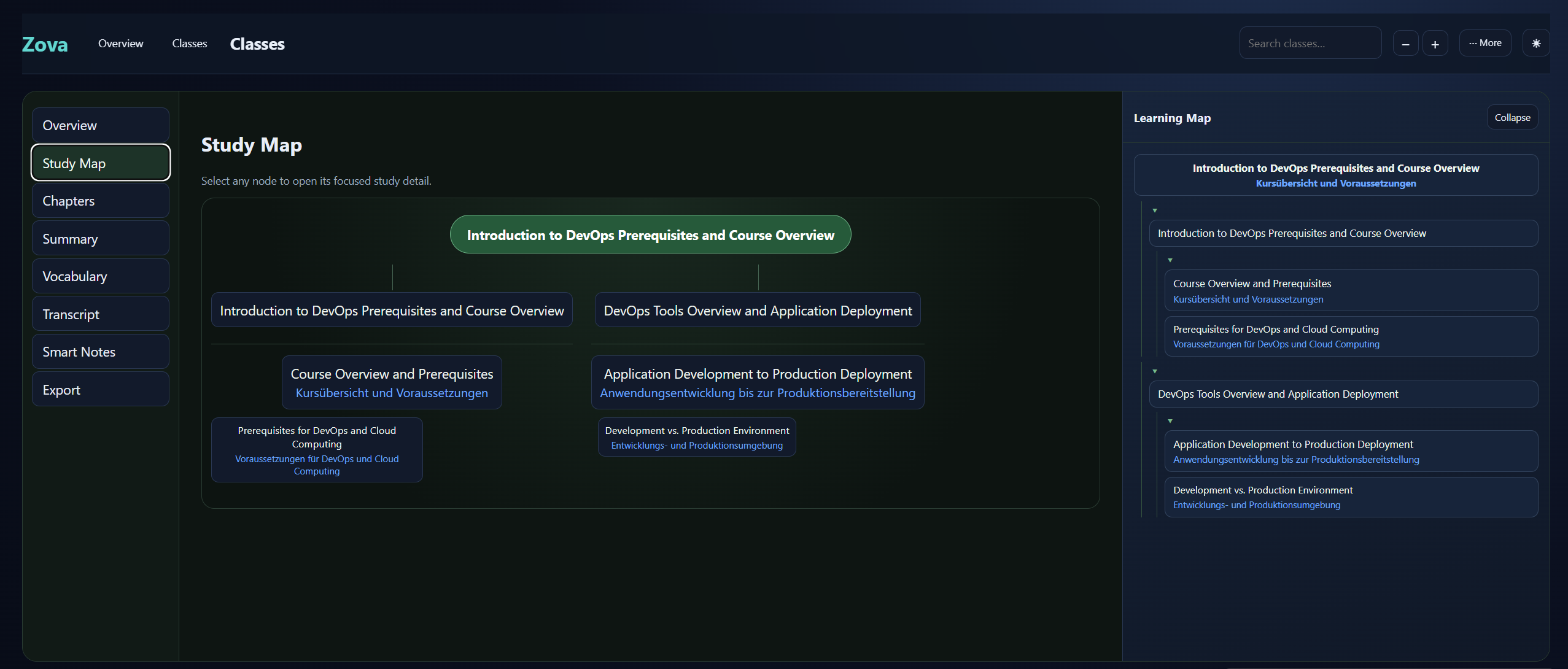
From Learning Map to Study Detail
The class sets the subject and scope. Zova organizes it into Chapters, Topics and Concepts, then lets you open one focused learning unit at a time.
- Learning Objective — what to understand after studying the concept
- Why This Matters and Core Idea — the central learning point first
- Key Points, Important Rules and Terminology — concise reviewable knowledge
- Teacher Evidence · From class and Teacher Examples · From class — classroom evidence kept distinguishable from added explanation
- Examples, Common Mistakes, Related Concepts and Quick Check when useful
- Hint and Quick Recap for progressive review
Not every section appears for every concept. Study Detail uses the sections that help with the selected part of the class.
Add your Gemini API key
Before starting a lesson, connect Zova to Google Gemini with your own API key. Zova does not currently charge for its own extension features; external Google services may have their own limits, eligibility requirements or terms.
- Open Google AI Studio API Keys.
- Click Create API key, choose a project, and copy the key.
- Open the Zova extension and click the Settings gear.
- Paste the key into the Gemini API key field.
- Click Save, then return to your lesson.
The key is stored locally in Chrome extension storage and is not included in class backup files.
Allow website access
When you start Zova on a classroom or video website, Chrome may ask you to allow access to that site.
Click Allow only for the lesson page you selected. This lets Smart Class appear beside the classroom and work with the active session.
Start your class
- Open the online lesson or video.
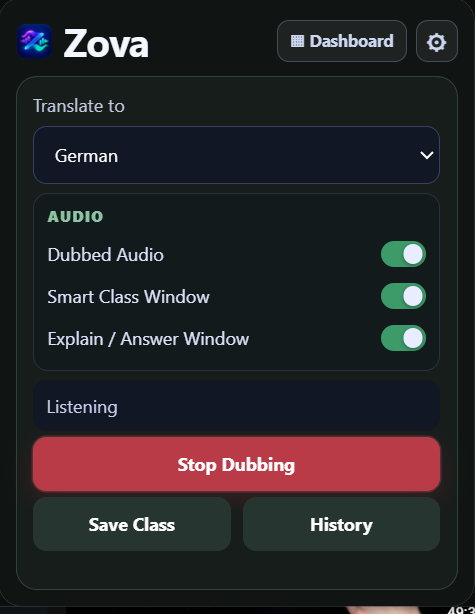
- Open Zova.
- Let Zova detect the lesson language automatically, then choose your translation language.
- Press Start.
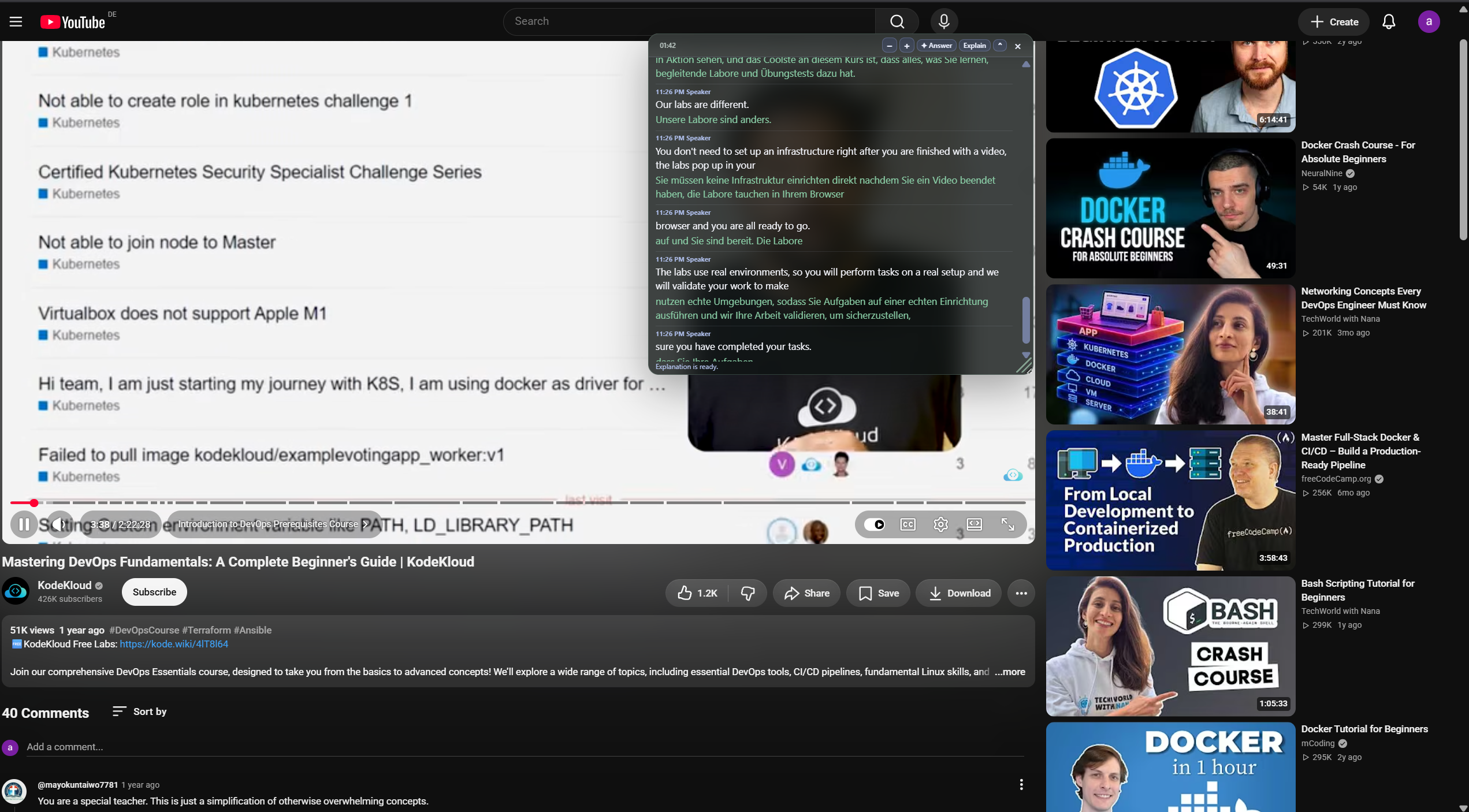
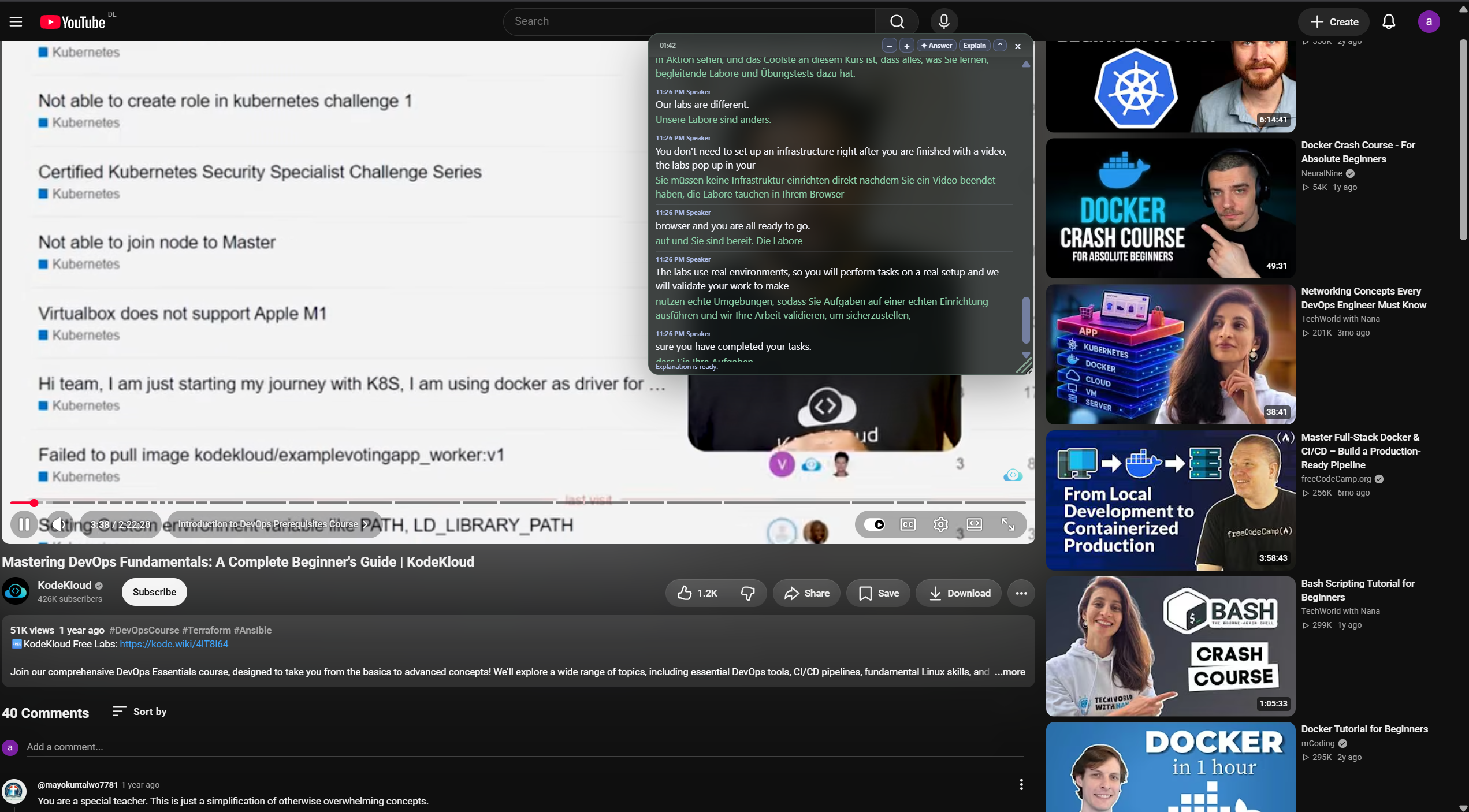
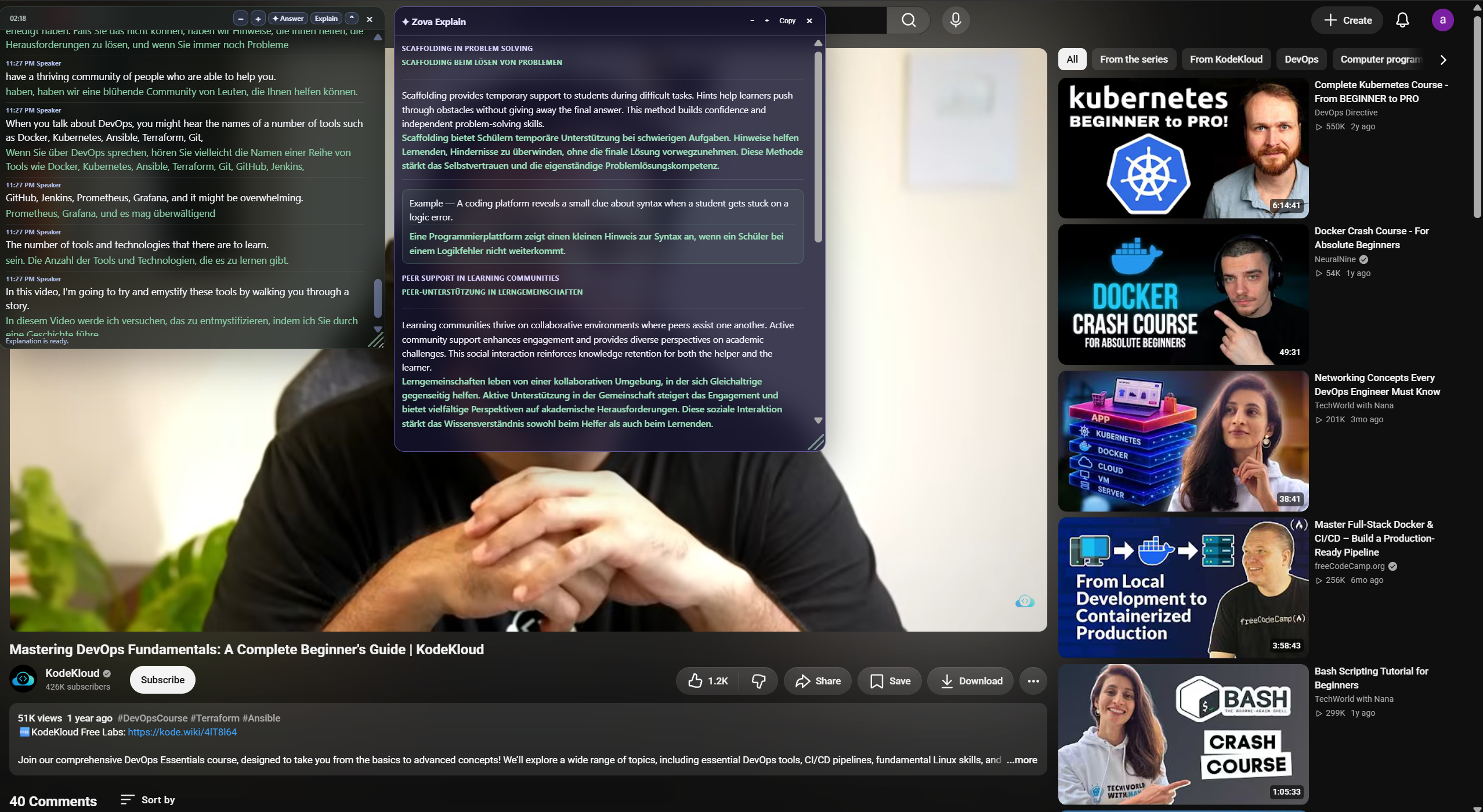
- Smart Class appears on the page.
Follow Smart Class
See original classroom content and the selected translation together as the lesson unfolds.
- Original lesson content appears first.
- Translation appears directly under the corresponding original text.
- The transcript continues as the lesson progresses.
- Text size can be adjusted.
- Smart Class can be resized.
- Smart Class can be minimized and restored.
- Content scrolls inside Smart Class after reaching its maximum display height.
Ask for help
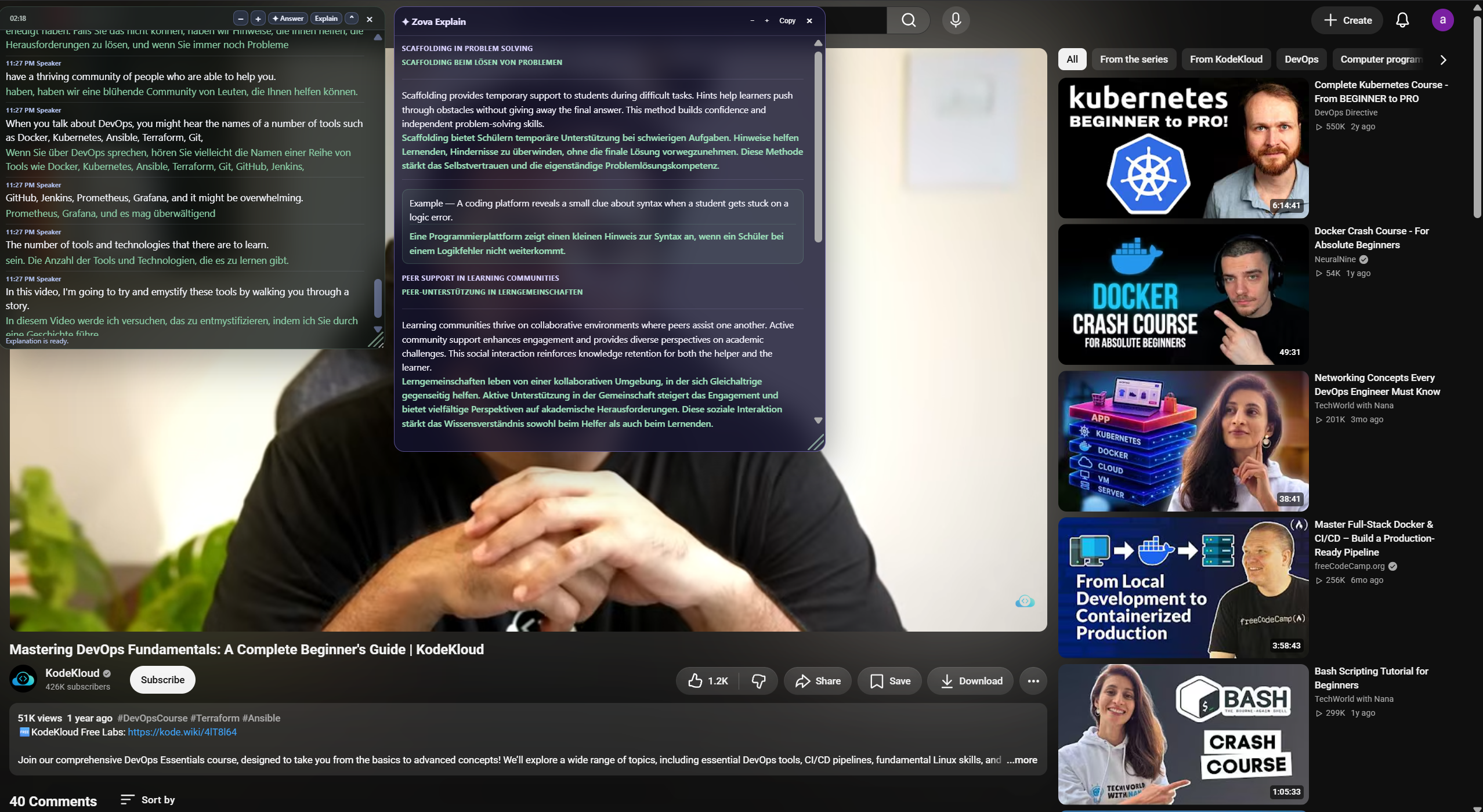
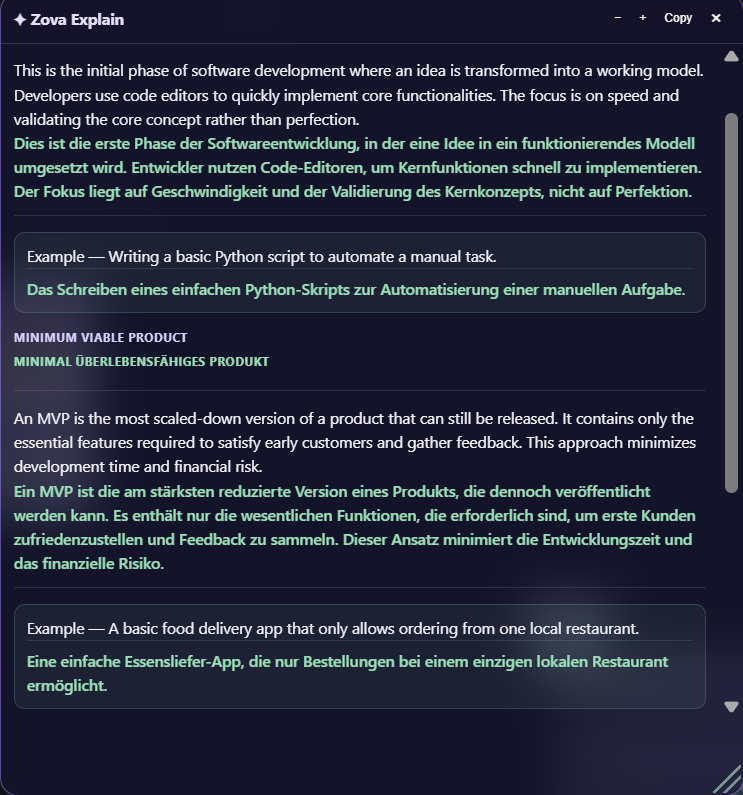
Use Explain or Answer when you need focused help understanding the lesson.
- Explain — use when a recent lesson concept needs a clearer explanation.
- Answer — use when you need a direct answer based on recent classroom context.
Zova processes the request in the background and returns the result directly to Smart Class.
Zova does not send your Gemini API key through the background assistant flow.
Optional translated audio
Dubbing (translated audio playback) is optional. You can enable or disable it separately from the rest of Zova.
Turning Dubbing off does not prevent Smart Class, the transcript, Save Class or Auto-Save.
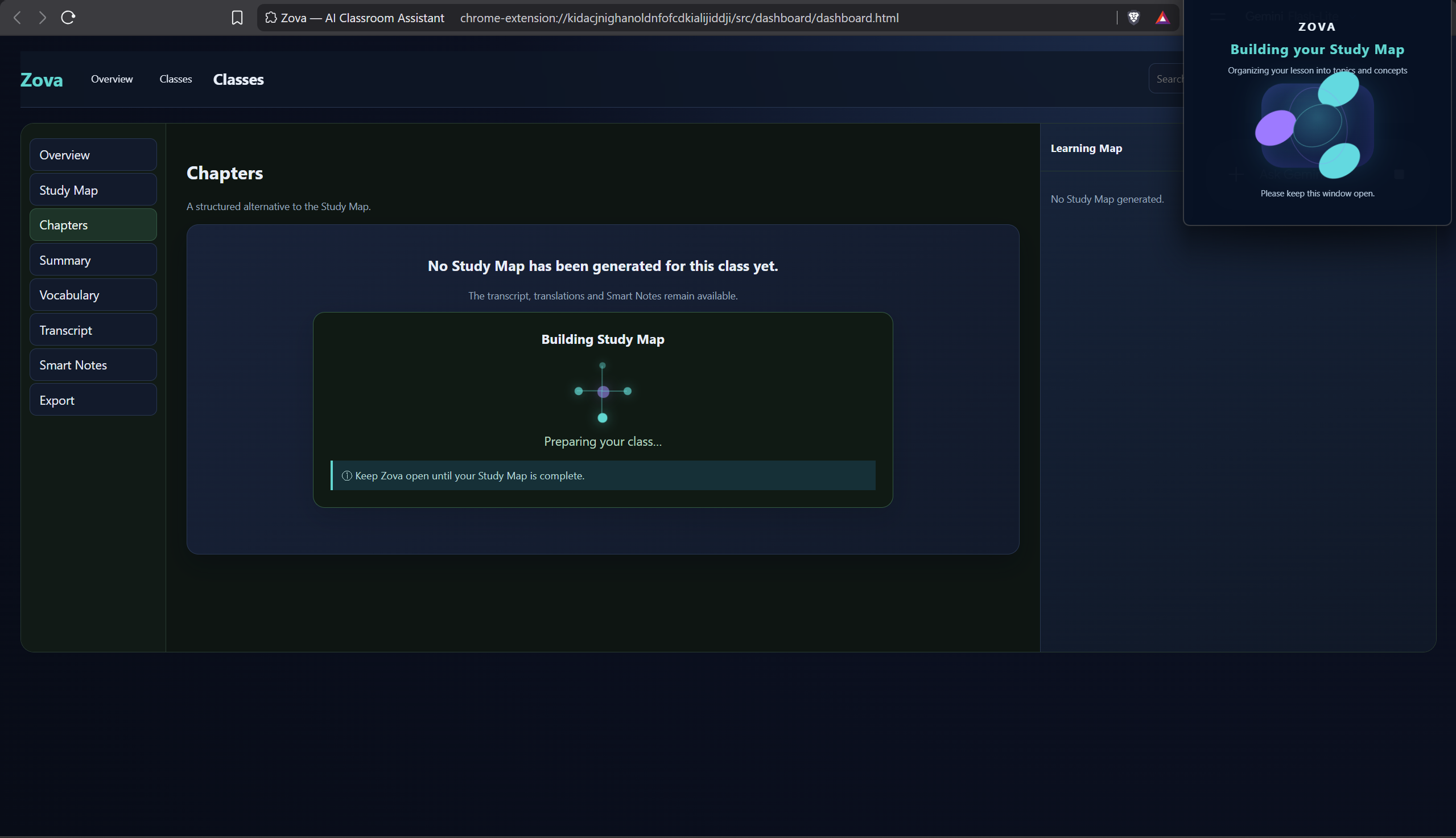
Save your class
A manual Save Class stores:
- Class metadata
- Transcript
- Translations
- Smart Notes
- Supported study data
Keep transcripts, translations and Smart Notes for later study — saved locally on your device.
Auto-Save protection
While Smart Class is active, meaningful changes can be automatically saved — so you don't have to constantly press Save.
Review later
Search, review, rename, export or delete saved lessons whenever you need them.
- Open saved classes
- Search your history
- Read original and translated transcripts
- Review Smart Notes
- Adjust text size
- Rename classes
- Delete classes
- Export Markdown
- Manage saved study material
Backup your classes
- Export Backup — downloads a Zova backup JSON containing your saved class data.
- Import Backup — restores compatible saved classes.
Your Gemini API key is not included in exported class backups. Backups are manual — Zova does not perform automatic cloud backups.